
Advanced Features
Custom Keyboard Commands
Section titled “Custom Keyboard Commands”Use keyboard shortcuts and commands to streamline your interactions and stay hands-on-keyboard:
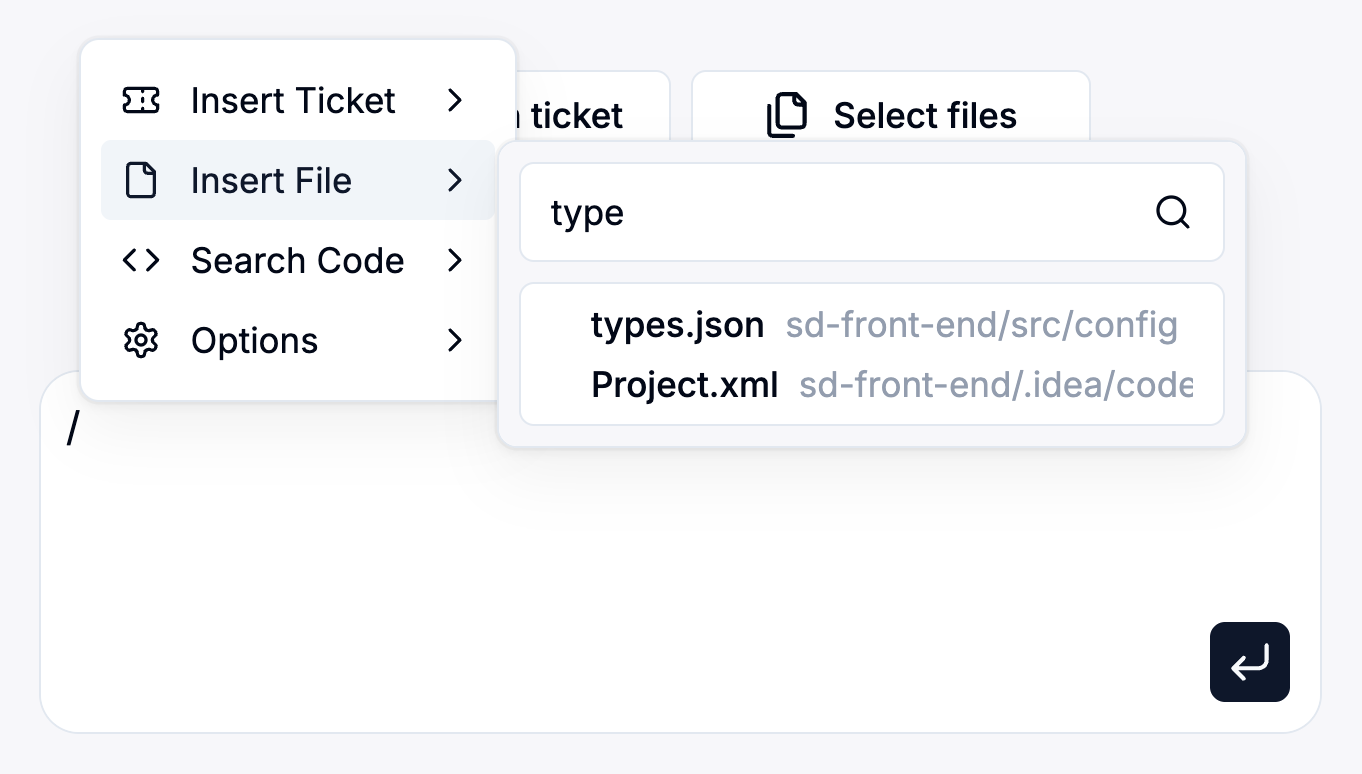
- Type ”/” to quickly access common commands:
- Insert Ticket: Quickly link an existing ticket.
- Insert File: Attach a specific file to your instruction.
- Search Code: Easily find snippets within your repository.
- Utilize familiar IDE-style shortcuts, like:
- Command + Click: Navigate directly to definitions or linked files.
- Option + Click/Drag: Multi-cursor editing for simultaneous edits across multiple lines.
- Option + Up/Down: Move selected lines up or down.
- Quickly copy Git information directly from Cosine:
- Click on the branch name at the top to:
- Copy Git checkout command.
- Copy branch name.
- View the branch directly on GitHub.
- Click on the branch name at the top to:
Custom Configurations
Section titled “Custom Configurations”Customize your project’s workflow by managing branching configurations:
- Access branching and merging settings from the Settings button at the bottom-right of Cosine’s interface.
- Specify:
- Source Branch: Define the branch Cosine should branch from when starting a new task.
- Target Branch: Select the branch Cosine will merge changes back into upon task completion.
These settings ensure Cosine integrates seamlessly with your existing workflow, keeping your development flow consistent and controlled.
Integration With Other Tools
Section titled “Integration With Other Tools”Cosine integrates seamlessly with popular development and productivity tools, including Jira, Slack, and Linear, helping you keep all aspects of your workflow streamlined. For a detailed guide on integrations, check out our dedicated Integrations page.