
VS Code
Use this guide to get Cosine working inside VS Code as quickly as possible. The easiest way to get started is directly inside VS Code.
Before you start
Section titled “Before you start”- VS Code 1.105.0 or later
- An internet connection for authentication and model inference
Quick start
Section titled “Quick start”-
Open VS Code and find the Cosine extension
Open the Extensions view inside VS Code (
Cmd/Ctrl+Shift+X), then search for Cosine. You can also view the extension details on the VS Code Marketplace.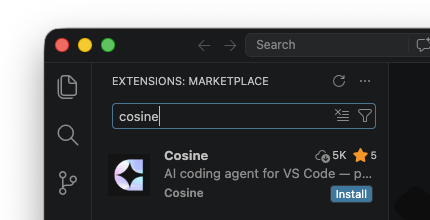
-
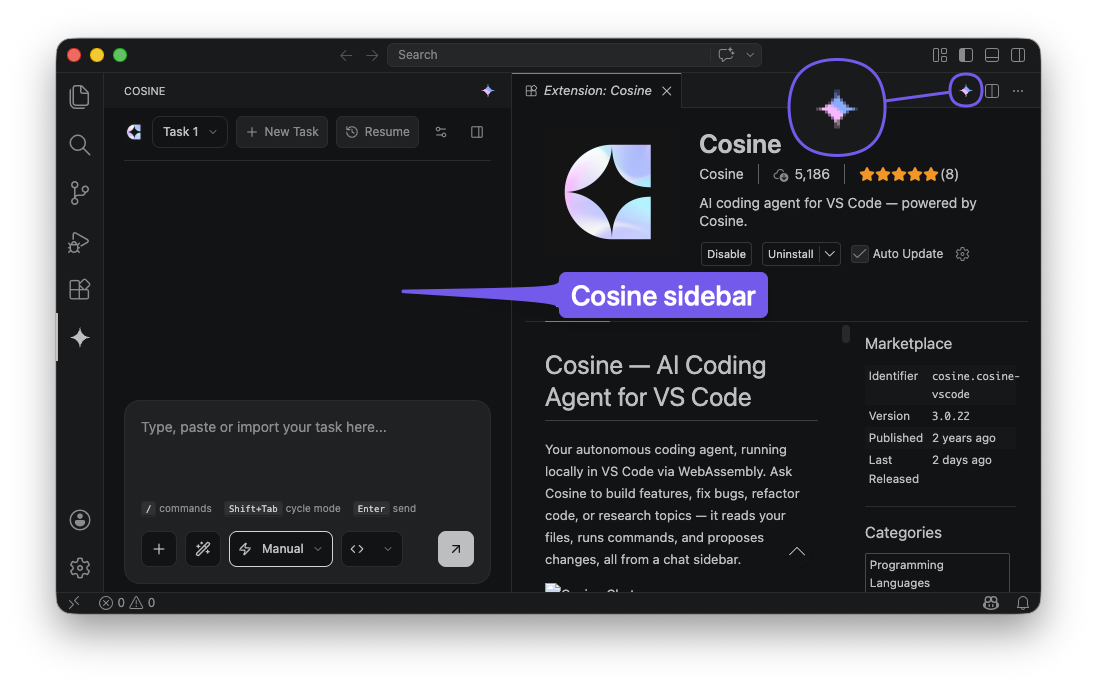
Install the extension and open the Cosine sidebar
After installing the extension, open the Cosine sidebar by either:
- clicking the Cosine icon in the top right when the extension page is open
- opening the Command Palette with
Cmd/Ctrl+Shift+Pand launching Cosine from there
-
Complete authentication
Opening the sidebar should trigger the authentication flow in your browser automatically. If it does not, open the Command Palette (
Cmd/Ctrl+Shift+P) and runCosine: Login. -
Start your first task
Once signed in, open a project in VS Code, provide some context with an open file or selection, and start working with Cosine from the sidebar and connected workflow in the editor.
What the extension adds
Section titled “What the extension adds”- A Cosine-enabled agent that can write code directly from the sidebar
- Authentication and session management inside VS Code
- Access to your open workspace and editor context for more relevant responses
- Inline diffs and file-change review without leaving the editor
- A native VS Code workflow for iterating on prompts, code changes, and fixes
Uninstall
Section titled “Uninstall”- Extension: uninstall Cosine from the VS Code Extensions view
- Sign out if needed from inside the extension before uninstalling
- Do I need the CLI for the extension to work? No. The VS Code extension runs Cosine locally inside VS Code via WebAssembly.
- Where do I review changes? Review changes directly in VS Code through inline diffs and file-change review.
- Do I still need to authenticate? Yes. You still need to sign in, and the extension requires internet access for model inference.
- How do I update Cosine? Update the VS Code extension through the VS Code Extensions view.
Next steps
Section titled “Next steps”- Prompting Cosine — Write clearer requests