
Quickstart
Use this Quickstart to get Cosine set up and complete your first task.
Cosine Cloud is the central hub of Cosine. This quickstart covers the fastest path to getting started in the web application: create an account, create a team, import a GitHub repository as a project, and create your first task.
Quick start in 5 steps
Section titled “Quick start in 5 steps”-
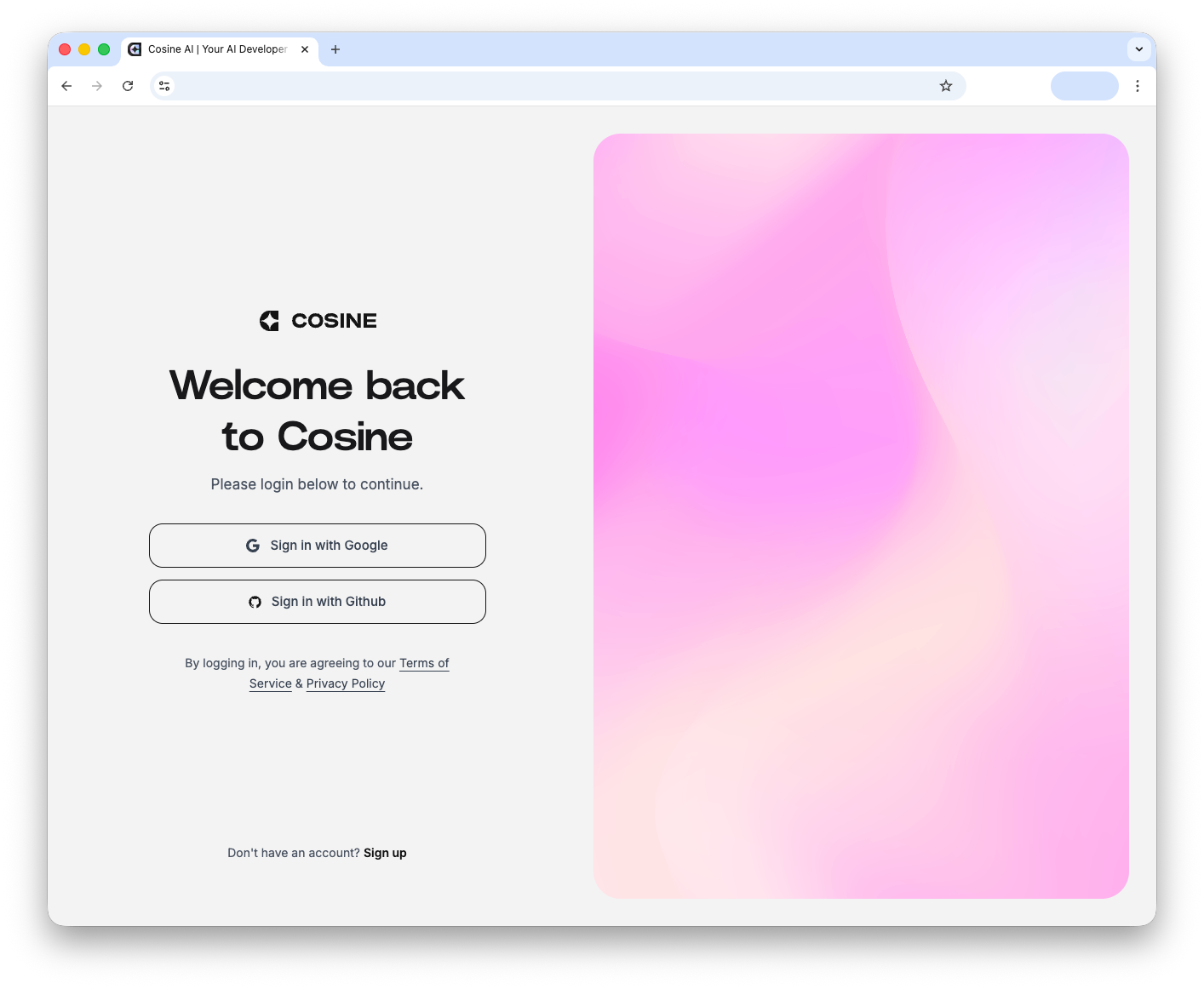
Create your account
- Open Cosine Cloud and sign up with your work email.
-
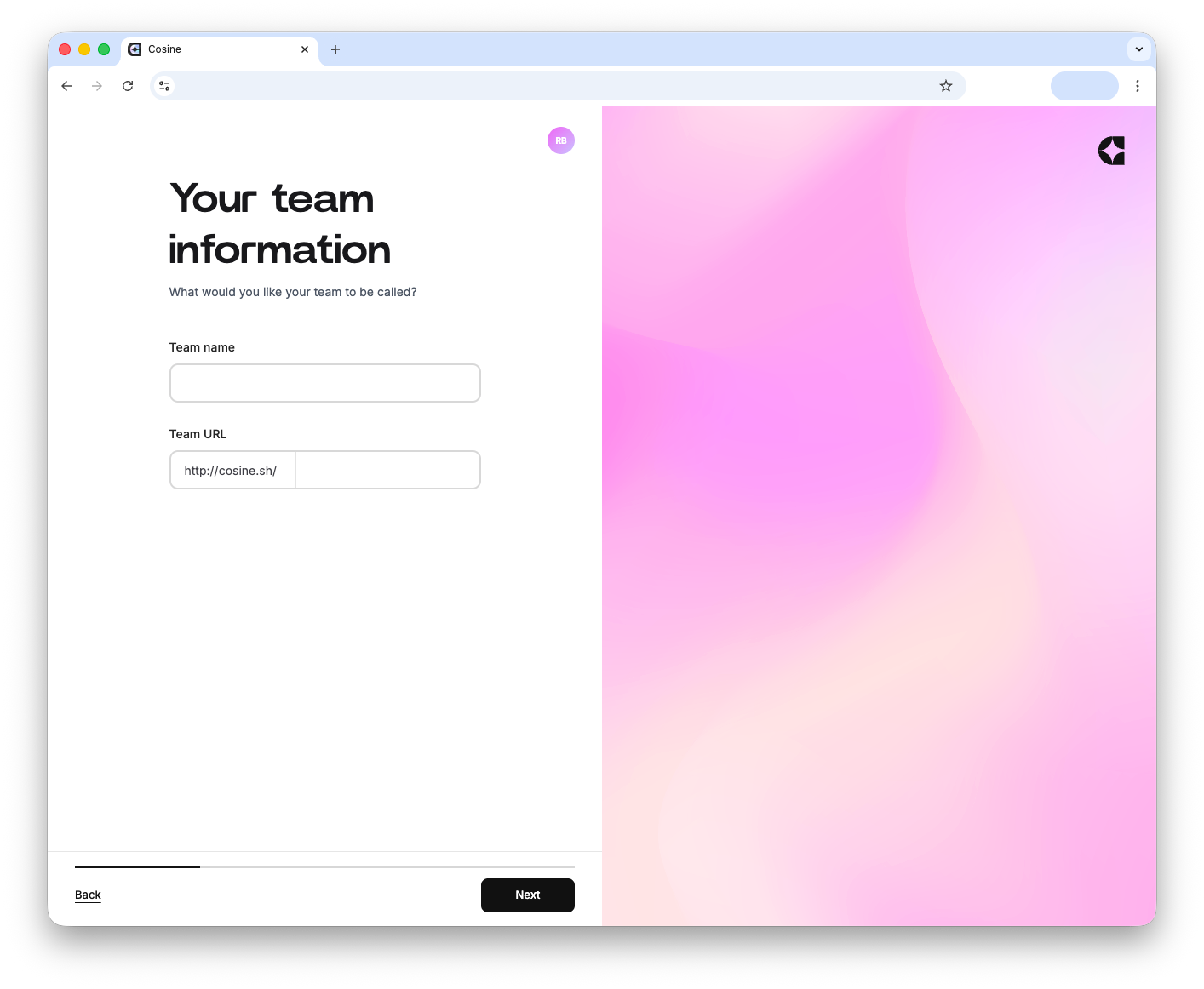
Create a team
- Create a team name and URL.
- Every account in Cosine has to be attached to a team.
- During onboarding, you can create a new team for personal use, or be invited into an existing team once it has been set up.
-
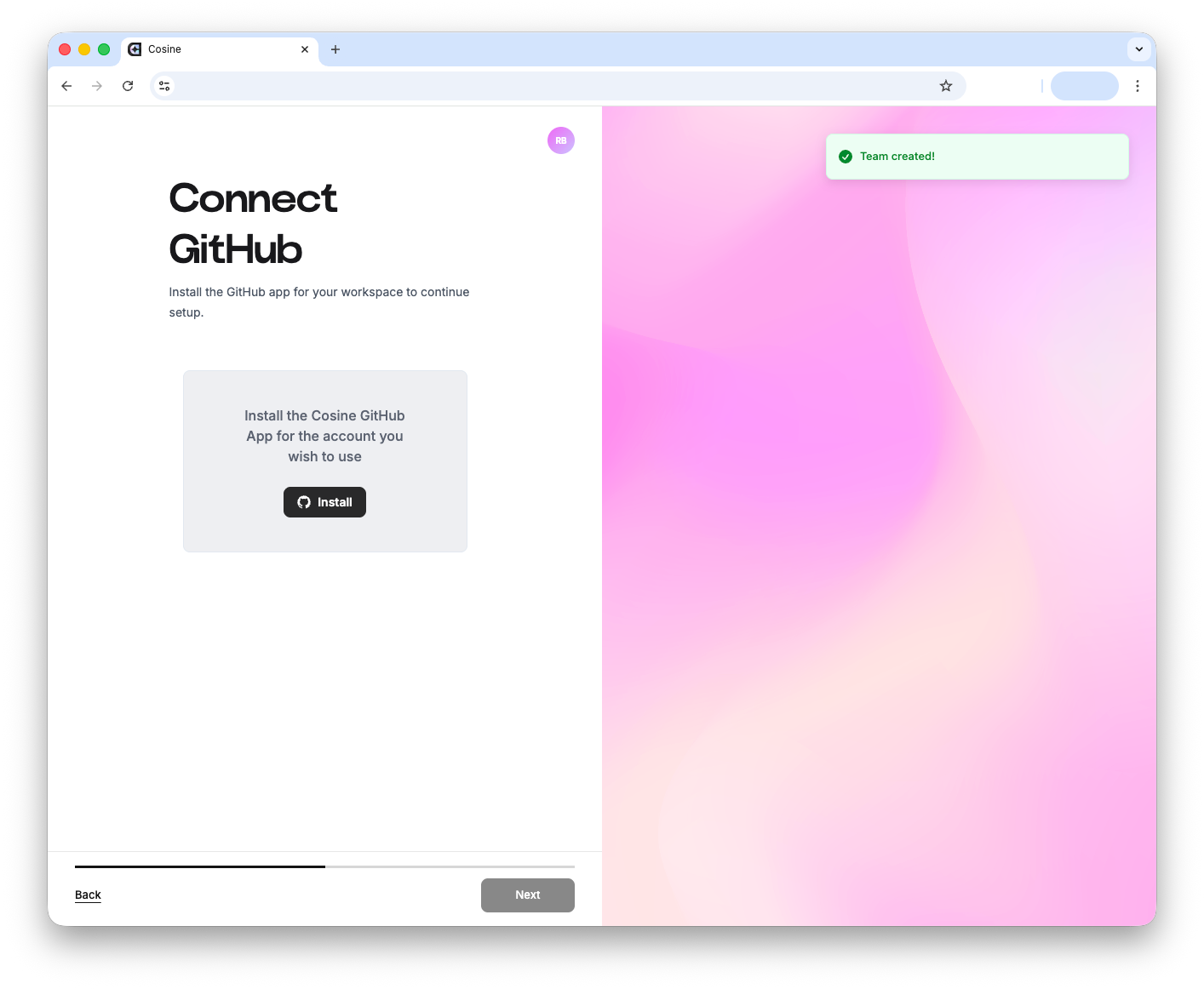
Connect your code
- Link GitHub and import one or more repositories you want Cosine to work on.
- If you do not already have a GitHub account, create one before continuing.
- In Cosine Cloud, each imported GitHub repository becomes a project.
- Cosine installs as a GitHub App with scoped permissions. You choose which repositories it can access, and can revoke access at any time.
- We only use your code to power product features—we don’t train on it or use it outside your workspace.
-
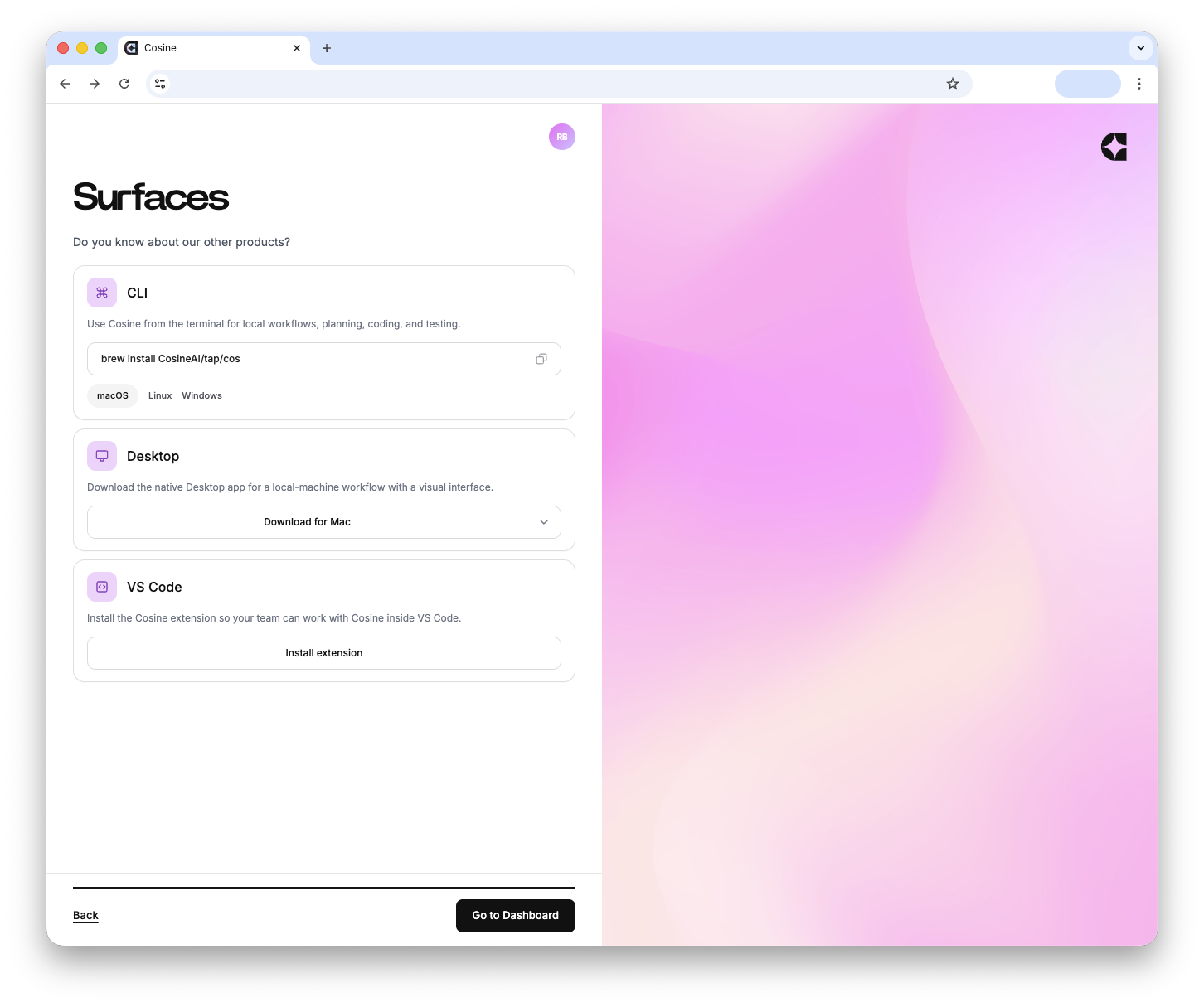
Install or download a surface
- Choose the environment you want to use with Cosine.
- You can download your preferred surface, or continue in the Cloud dashboard.
- See Ways to use Cosine for the different surfaces and where each one fits.
-
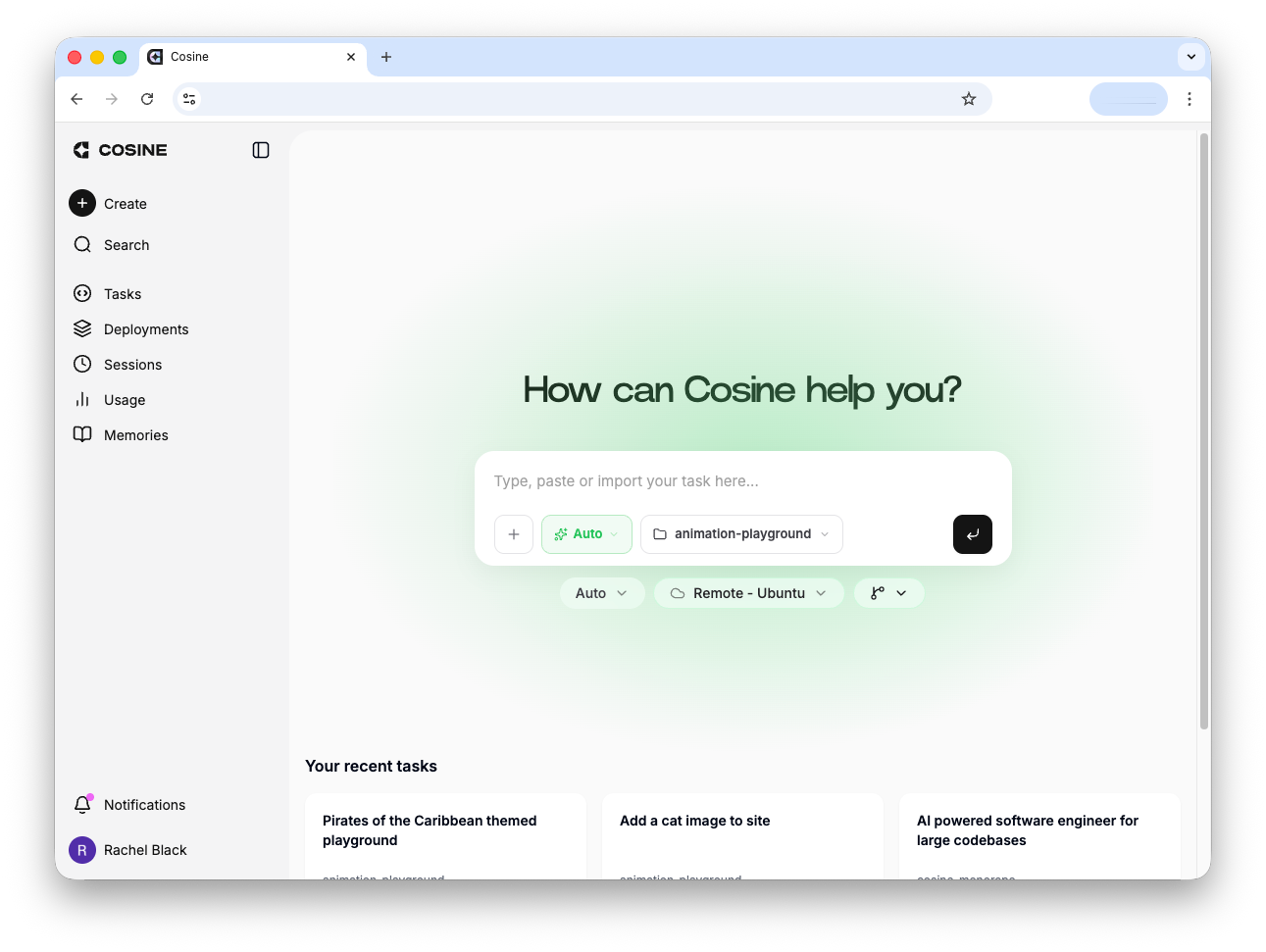
Create a task
- Open your project and use the New task / prompt box to tell Cosine what you want.
- Keep the first task simple: describe the bug or feature, include any acceptance criteria, and let Cosine start from there.
- A good first task is usually small, concrete, and easy to verify.
What next
Section titled “What next”- Project Settings — Configure repository-specific workflows, CI checks, and integrations
- Merging Pull Requests — Review, approvals, and merge flow inside Cosine
- Ways to use Cosine — When to use Cloud, CLI, VS Code, or Desktop
- Integrations — Connect tools like Jira, Linear, Slack, and more
First‑task ideas you can try today
Section titled “First‑task ideas you can try today”- “Fix the header logo alignment on mobile (<768px). Add a test.”
- “Add a ‘Resend verification email’ button on the account page with success/error toasts.”
- “Refactor legacy utils/date.js to TypeScript, add unit tests for parseDate and formatDate.”