
Environments
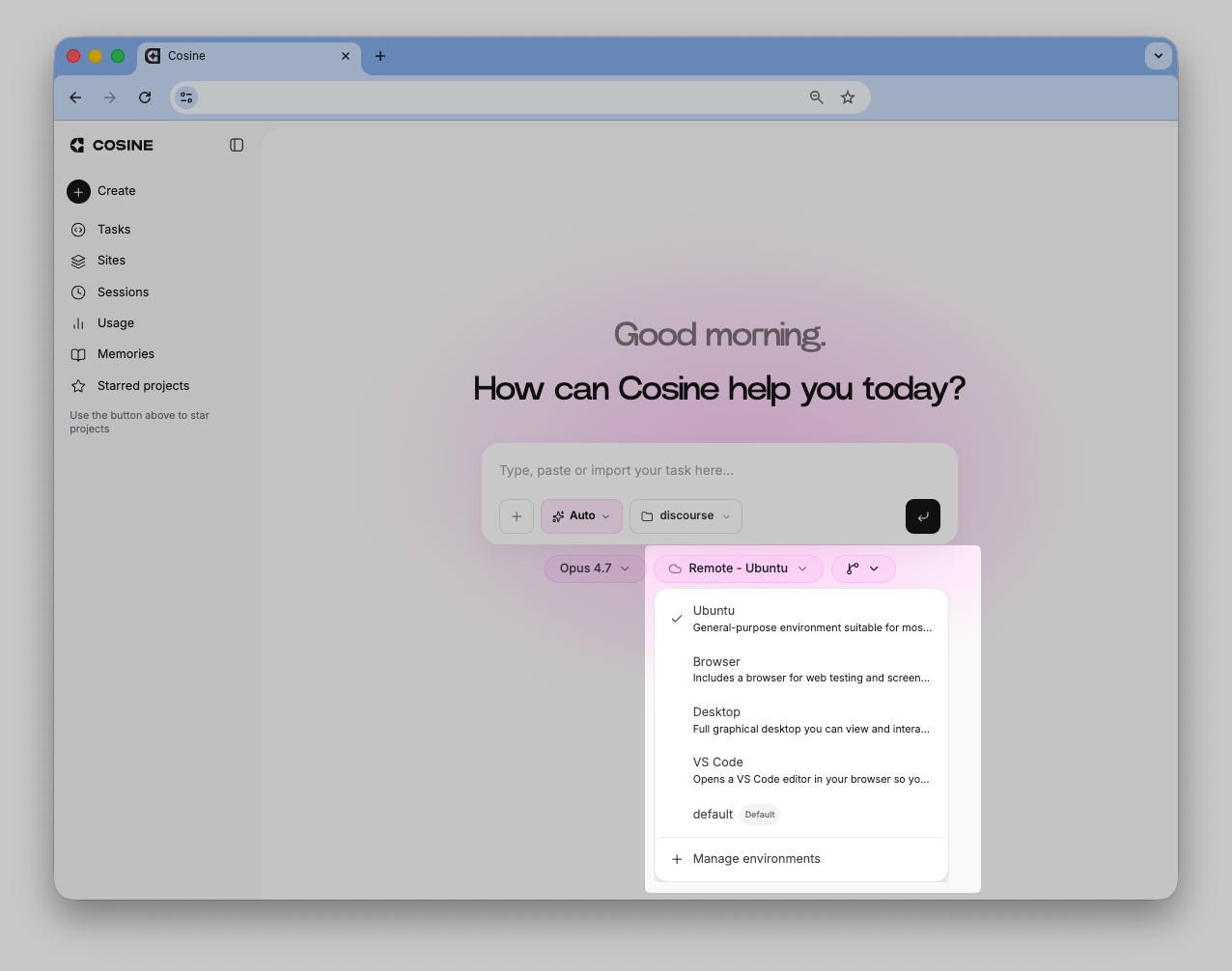
When you create a task in Cosine Cloud, you choose the environment and size the task should run in. The environment determines the operating system, tools, dependencies, and secrets available to the agent.
For the broader concept of local and remote execution across Cosine, see Locations and environments.
How environments work in Cloud
Section titled “How environments work in Cloud”When you create a task in Cloud:
- You select an environment and size
- Cosine provisions a remote workspace using that environment
- The agent clones your repository and works inside that workspace
- Changes are returned to Cloud for review and can be pushed to your repository
Cloud workspaces are ephemeral. They are created when the task starts and cleaned up when the task ends. Your code changes, commits, branches, and review artifacts are what persist.
Default environment
Section titled “Default environment”New projects can start with the default Ubuntu environment immediately, without creating a custom environment.
Ubuntu
Section titled “Ubuntu”The default environment for most engineering work.
- Use for: General-purpose development, code edits, builds, tests, and shell commands
- Choose it when: You want a full Linux environment with broad language support
Choose a size
Section titled “Choose a size”All Cloud environments can run at different resource tiers.
| Size | CPU | Memory | Best for |
|---|---|---|---|
| XS | 0.25 | 512 MB | Lightweight tasks, quick scripts |
| S | 0.5 | 1 GB | Small services, focused edits |
| M | 1 | 2 GB | Default for most application work |
| L | 2 | 4 GB | Heavier builds, larger test suites |
| XL | 4 | 8 GB | Largest repositories, demanding workloads |
Start with M for most work. Scale down for quick, focused tasks, or scale up for large builds, heavy indexing, and memory-intensive workloads.
Create a custom environment
Section titled “Create a custom environment”Create or auto-generate a custom environment when your project needs dependencies, tools, browser or desktop access, or configuration that the default Ubuntu environment does not include.
Custom environments are useful when:
- Your project requires specific language versions or system packages
- You want dependencies baked in before the task starts
- Your team needs consistent tooling across Cloud tasks
- The task depends on services, databases, or private packages
Create one in project settings
Section titled “Create one in project settings”- Open the project in Cloud.
- Go to Project Settings → Environments → Configure Environments.
- Click Create or Auto-generate.
- Select a base image, such as Ubuntu, Browser, or Desktop.
- Edit the Dockerfile or let Cosine generate one from your repository.
- Add environment secrets if needed.
- Select a size preset and build the environment.
The built environment becomes available in the task environment picker.
Auto-generate an environment
Section titled “Auto-generate an environment”Auto-generate analyses your repository and creates an environment tailored to your project:
- Detects languages, frameworks, and package managers
- Generates a Dockerfile with appropriate dependencies
- Builds and validates the environment at runtime
- Saves the Dockerfile in the
.cosinefolder in your repository
Manage environments
Section titled “Manage environments”From the Cloud environments settings panel, you can:
- View environments with build status and base image
- Edit an environment Dockerfile or secrets
- Rebuild an environment after making changes
- Set as default for new tasks
- Delete environments you no longer need
- View build logs to debug failures
Environment files and secrets
Section titled “Environment files and secrets”When you create custom environments, Cosine can save configuration in your repository:
.cosine/Dockerfile— The default environment Dockerfile.cosine/<name>.Dockerfile— Named environment Dockerfiles.cosine/defaults.json— Size preferences and default environment setting
These files can be committed to version control so your team can share the same environment setup.
Secrets are encrypted key-value pairs injected into environments at runtime. Use them for API keys, access tokens, database credentials, private registry authentication, and other sensitive configuration.
Secrets are always encrypted and stored per environment. They are never exposed in build logs or Dockerfiles.
Related pages
Section titled “Related pages”- Locations and environments — How local and remote environments work across Cosine
- Creating a task — Select an environment when launching a Cloud task
- Desktop task locations and environments — Environment management in Desktop
- Quickstart — Fastest path to your first task in Cloud