
Overview
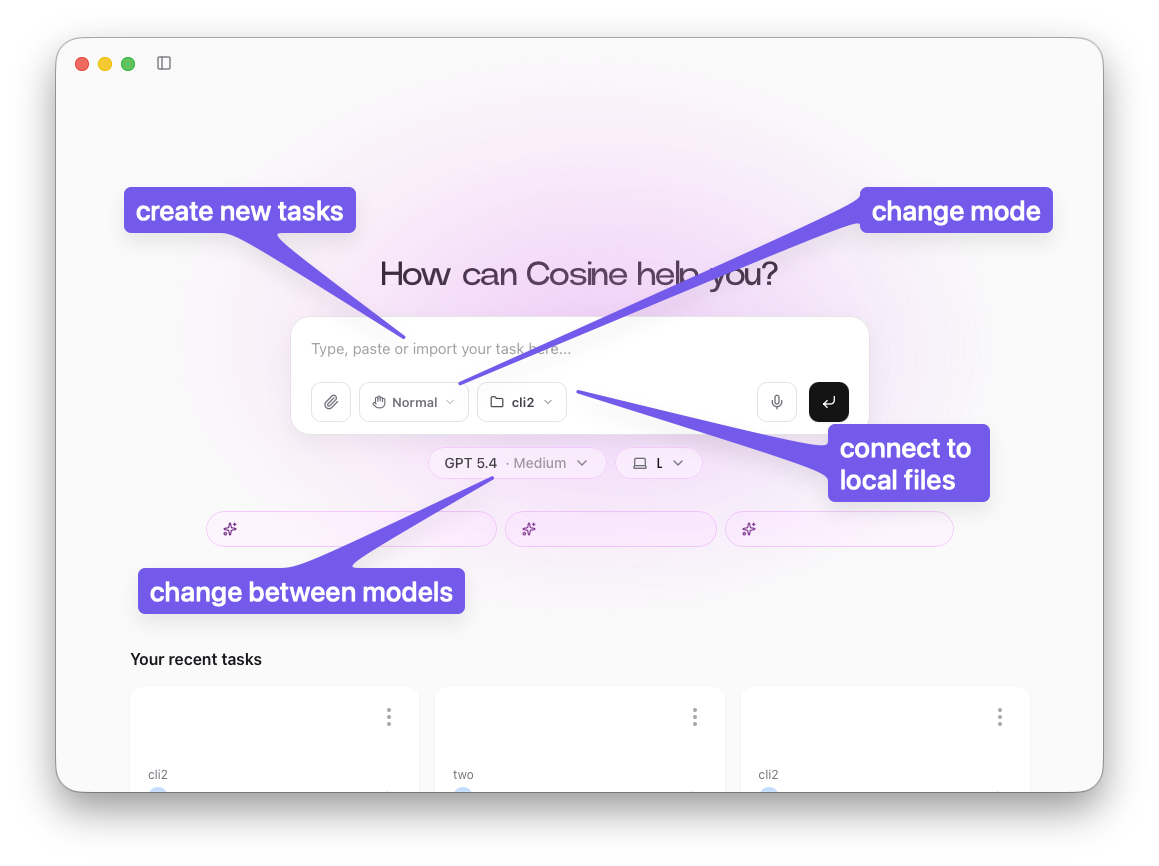
The Cosine Desktop app is a native client for the same core Cosine workflow you use in Cloud, but it lives on your machine. It gives you a desktop workspace for managing sessions, linked local projects, and reviews in one place.
Cosine Desktop gives direct access to local files and local development workflows. You can link project folders on your machine, ask Cosine to make changes, run builds and related commands, and review the results from the same app.
What You Can Do
Section titled “What You Can Do”- Work directly on local project folders that live on your machine
- Keep sessions and project history in one desktop workspace so you can return to previous threads and pick up where you left off
- Review plans, timelines, and code diffs in one place while a task is running
- Open built-in browser and terminal panels to inspect running apps, runtime output, and build results without leaving Desktop
- Adjust model, reasoning, and automation settings for the current task from inside the app
- Manage linked projects and workspaces instead of reconnecting context every time you switch codebases
- Use environment and build workflows directly from Desktop when you need to prepare, run, or inspect local development setups
- Track agent activity in side panels so you can see context, task progress, and supporting details as work happens
Quick start
Section titled “Quick start”Before you start
Section titled “Before you start”- Download and install Cosine Desktop from Cosine Desktop releases
- A Cosine account you can sign in with
- A local project folder or repository to add as a workspace in Desktop
- Permission to let Cosine read and write to that project
Desktop permissions
Section titled “Desktop permissions”Some Desktop features can interact directly with your computer, beyond editing files in a repository. If you want to fully use these workflows, Desktop may need additional operating-system permissions.
Depending on your platform, that can include:
- Accessibility permissions
- Screen Recording permissions
These permissions allow Desktop to observe and control the parts of your machine needed for these tasks.
Quick start in 5 steps
Section titled “Quick start in 5 steps”-
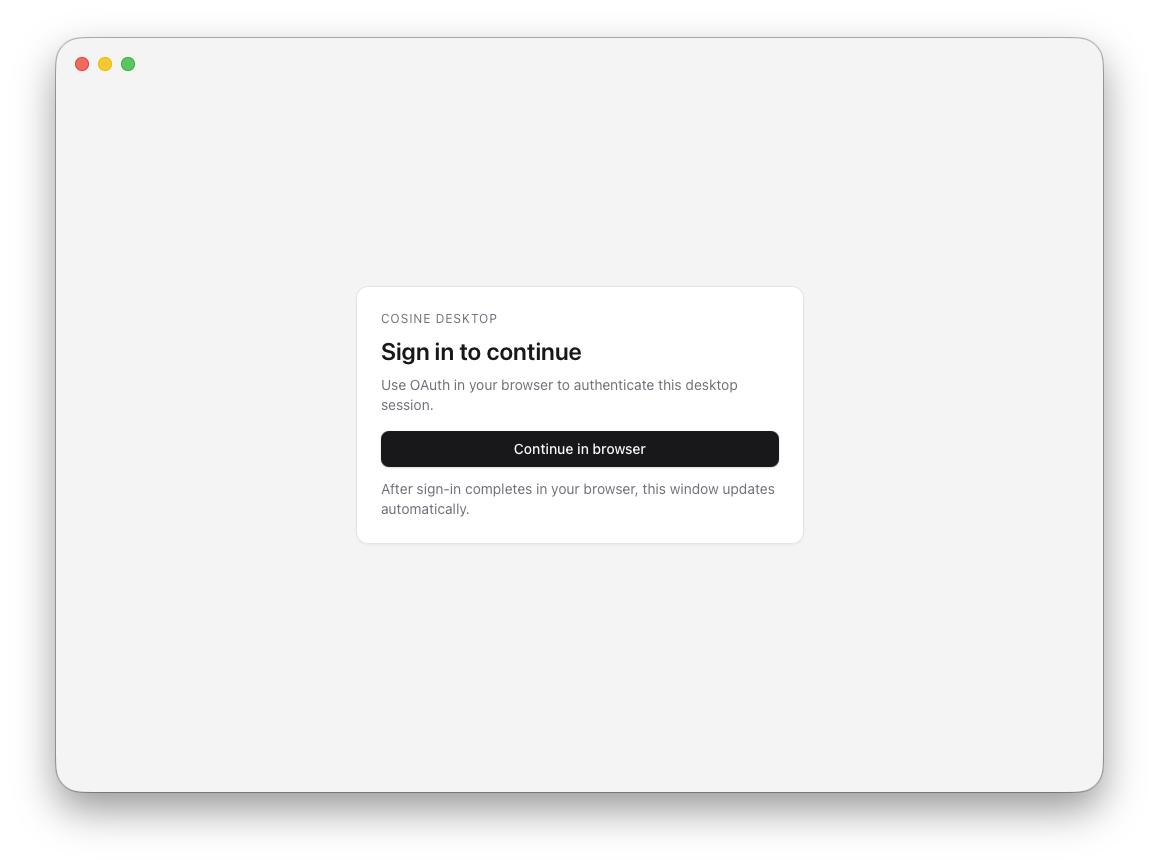
Open Desktop and sign in
Launch Cosine Desktop on your machine and complete the sign-in flow when prompted so the app can connect to your Cosine account.
-
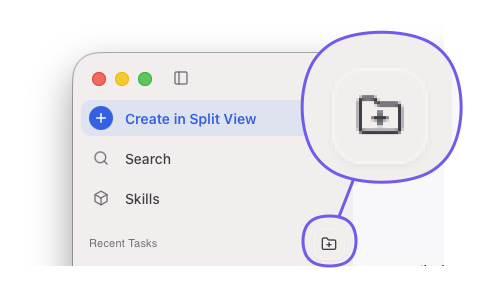
Link a local project
Add the repository or workspace you want Cosine to work on. Choose the local folder on your machine and confirm the link.
-
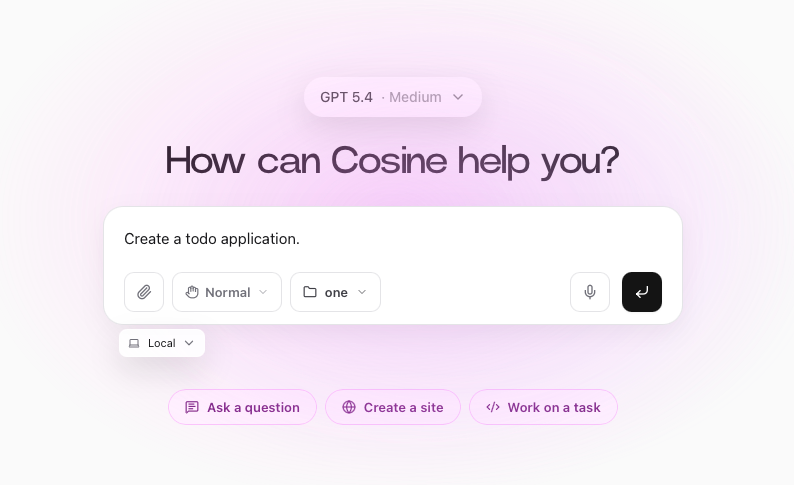
Start a new task
Open a new session and describe what you want Cosine to do. Keep the request concrete: explain the bug, feature, or change and include any acceptance criteria.
-
Review the work in the Desktop app
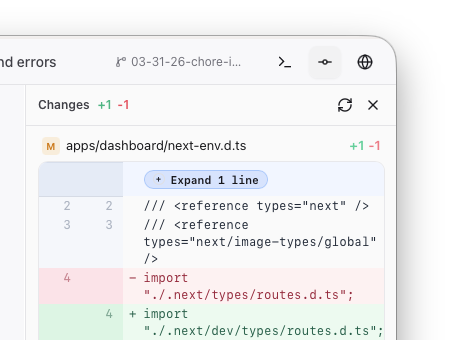
Use the session timeline, plan review, diffs, and side panels to see what Cosine is doing and inspect the result.
-
Iterate until it is ready
Ask follow-up questions, refine the task, and continue until the changes are ready to merge.
Good first tasks
Section titled “Good first tasks”- Fix a small UI bug in a local project
- Add a focused test for an existing function
- Refactor a small utility and verify the behavior still holds
How the Desktop App Fits In
Section titled “How the Desktop App Fits In”Desktop is the native app version of the same core Cosine workflow you use in Cloud. The difference is that Desktop runs on your machine, so it can work directly with local projects and local development tools.
- local files and linked workspaces
- native drag-and-drop from your machine
- microphone access for voice input
- in-app updates and restart flows
- desktop windowing and app-level controls