
Getting Started with Cosine
Cosine can be used across Cloud, CLI, and Desktop. If you are not sure which environment is right for you, start with Ways to use Cosine.
This guide shows you how to get started with Cosine Cloud, where you can run tasks and AI agents in a remote environment connected to your repositories. You will create an account, set up your team, choose a plan, connect GitHub, and launch your first task.
Cosine Cloud is the central hub of Cosine. It is the best place to run Cloud Agents, manage projects, connect integrations, and coordinate work across your team.
Quick start with Cloud
Section titled “Quick start with Cloud”-
Create your account
- Open Cosine Cloud and create an account with either a work or personal email.
-
Create a team
- Create a team name and URL.
- Every account in Cosine is part of a team. This can be a team for a single user, or one you add colleagues and other team members to.
- Team settings can be adjusted later in the app.
-
Select your plan
- Choose the plan that fits how you want to get started.
- Compare the available options on the pricing page.
-
Complete subscription setup
- Finish the checkout flow in Stripe to activate your selected plan.
- Once that is complete, you can continue into Cosine Cloud or move to another surface.
-
Install or download a surface
- Choose the environment you want to use with Cosine.
- You can download your preferred surface, or continue in the Cloud dashboard.
- See Ways to use Cosine for the different surfaces and where each one fits.
-
Connect GitHub to use Cosine Cloud
- Connecting GitHub lets Cosine work on projects and repositories remotely.
- If you would like to work locally with the command line interface, you can skip this step.
- Choose which repositories and organizations you want to share, or give Cosine access to all repositories.
- Access can be adjusted at any time from within GitHub.
-
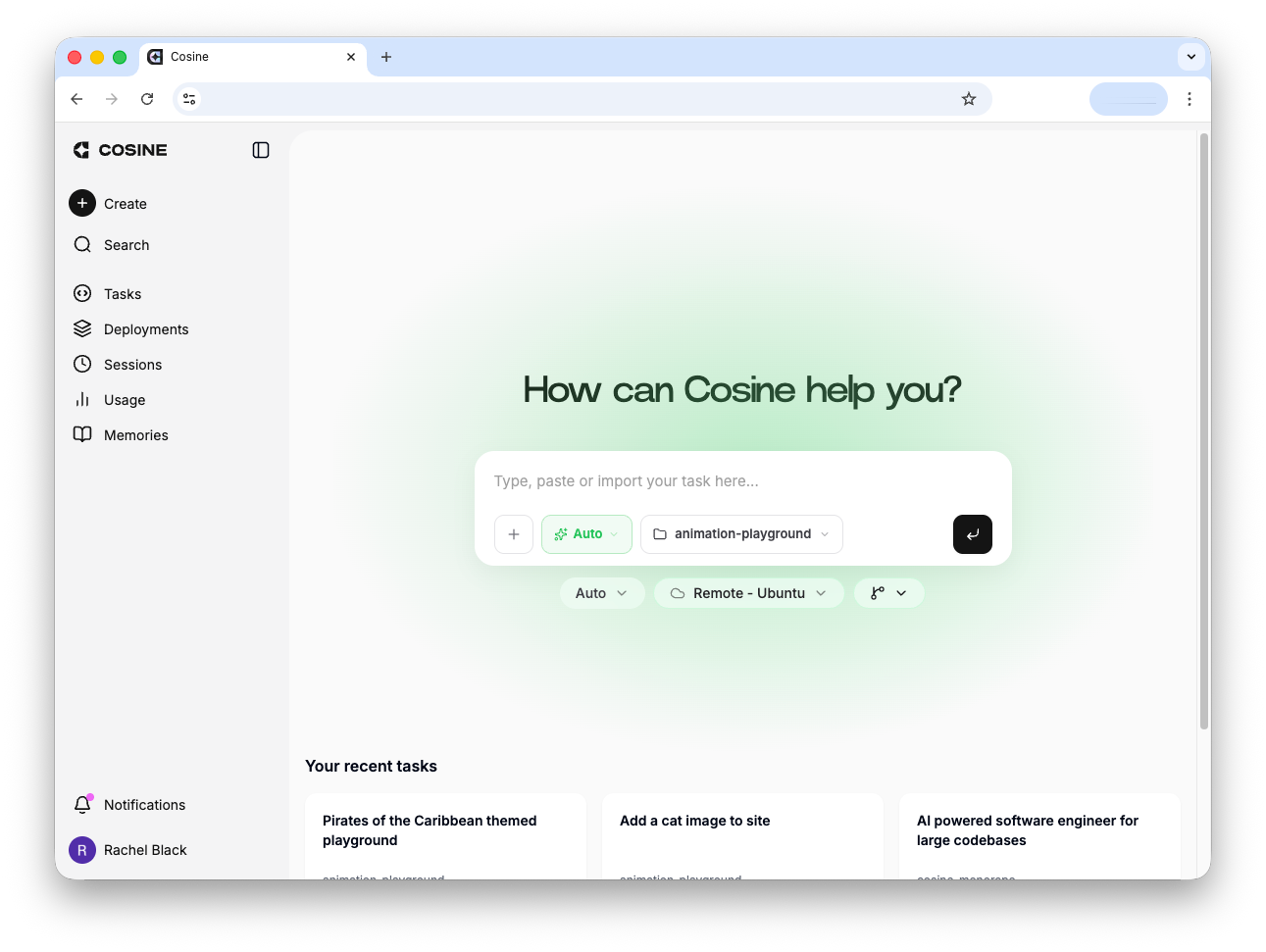
Open your Cloud workspace
- After onboarding, you land in Cosine Cloud, where you can view your team, settings, projects, connected repositories, and tasks.
- Your repositories from GitHub will have been imported as projects.
- If a repository is missing, check your GitHub integration settings and confirm that Cosine has access to it.
-
Create a task
- Create a task from the input field. What you ask the agent to build is up to you — it could be a small fix, a refactor, or a new feature.
- When a Cloud task starts, Cosine clones your repository into a remote environment, works on the task there, and returns the proposed changes in Cloud for you to review.
- Congratulations — you are building agentically with Cosine.
Now continue building by exploring agent modes, the command line, the Desktop app, or Cosine’s homegrown models.
What next
Section titled “What next”- Project Settings — Configure repository-specific workflows, CI checks, and integrations
- Merging Pull Requests — Review, approvals, and merge flow inside Cosine
- Ways to use Cosine — When to use Cloud, CLI, or Desktop
- Integrations — Connect tools like Jira, Linear, Slack, and more