
Slack
Overview
Section titled “Overview”With Cosine’s Slack integration, you can launch tasks directly from your Slack workspace by simply mentioning @Cosine. Start tasks, colloborate interactively, and get answers in real time — all without leaving Slack, so your team can stay seamlessly in-flow with its existing workflow
Configure
Section titled “Configure”Cosine is now available as a first-class AI app in Slack, fully leveraging Slack’s new AI surfaces (top-bar entry, split-view container, Chat & History tabs).
To get started:
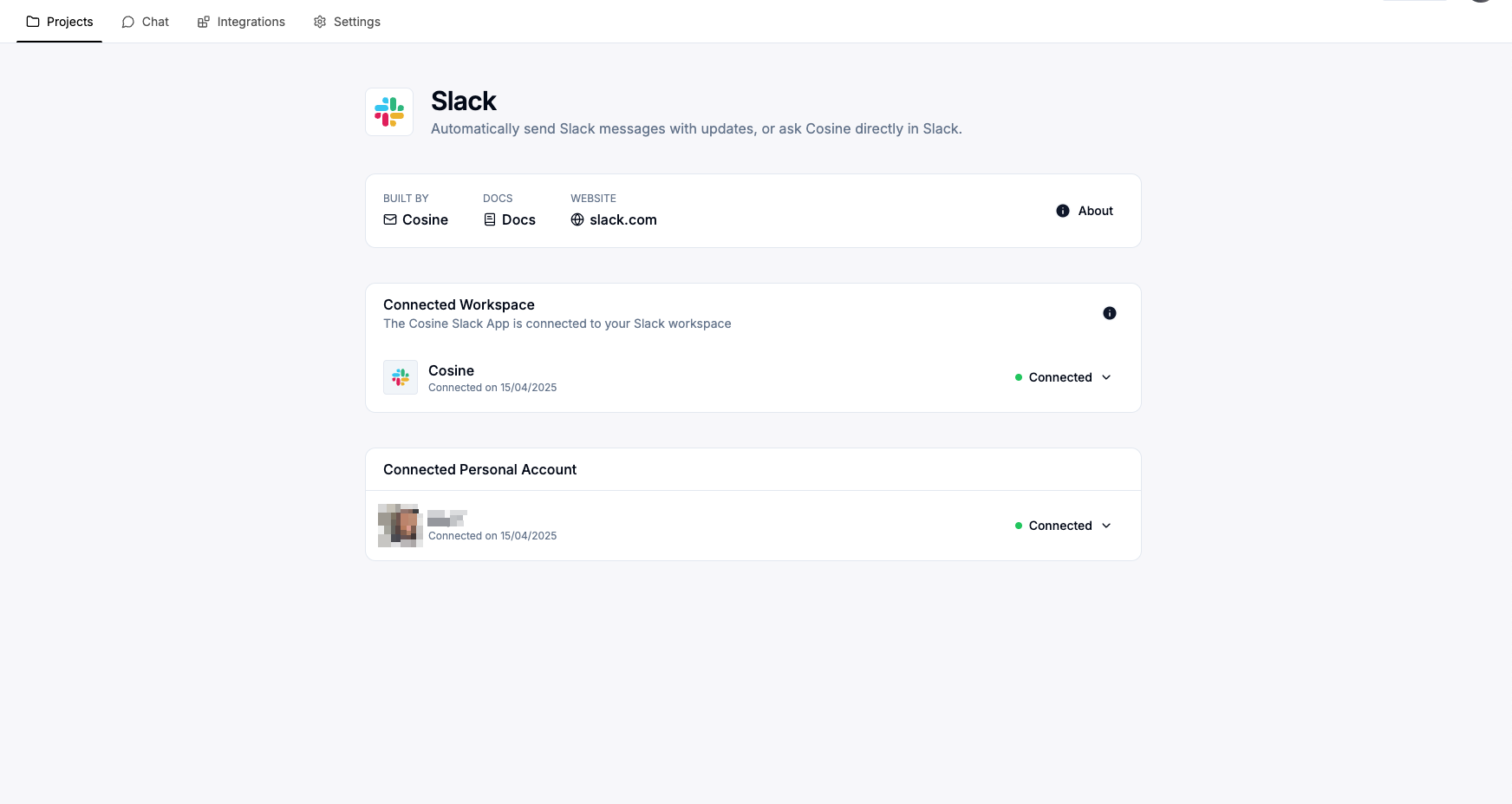
- Navigate to the Integrations page in your Cosine team
- Select Slack from available integrations
- Click Enable to start the authorization process
- Workspace Authorization: You’ll need to authorize your Slack workspace. You have to be a workspace admin to enable permissions
- Personal Account Linking: We strongly recommend linking your personal Slack account as well. This enables Cosine
- tasks to be directly assigned to you.
NOTE: A Slack workspace can only be integrated with one Cosine team at a time.
How it works
Section titled “How it works”You can use Cosine in Slack in two ways:
1. @Cosine in Channels and DMs
Section titled “1. @Cosine in Channels and DMs”Once your Slack workspace is successfully integrated:
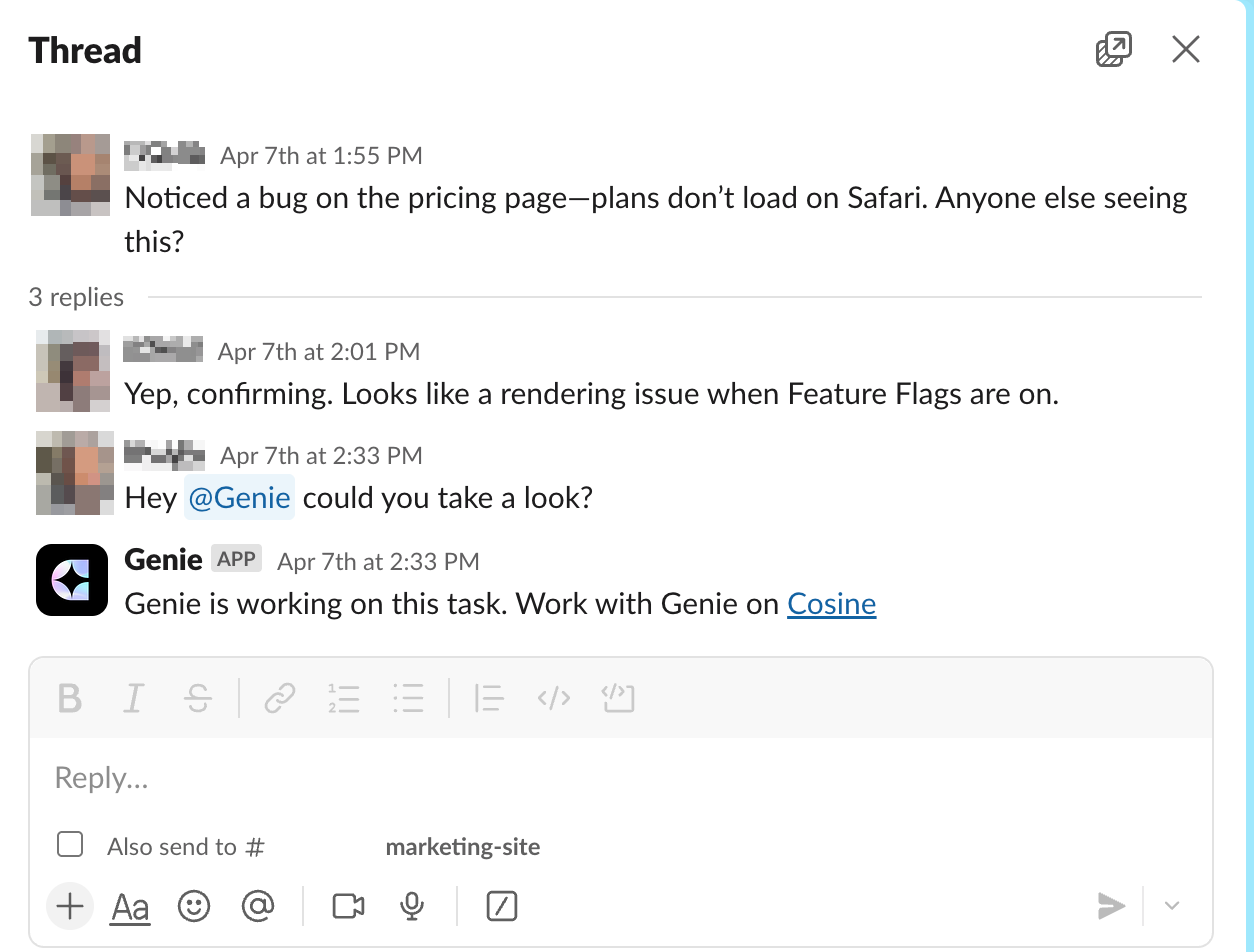
- Mention Cosine: In any channel Cosine has been invited to, type
@Cosinefollowed by your request. - Thread context: If you invoke Cosine inside a thread, it will pull the entire thread into context for richer, more accurate task creation.
- Single-message context: If it’s a one-off message, only that message is used.
2. Chat-Based Working Sessions
Section titled “2. Chat-Based Working Sessions”Cosine now also lives in Slack’s split-view conversational UI under Apps & AI Agents, so you can now iterate on tasks in real time.
Configure:
Section titled “Configure:”If you don’t immediately see Cosine in the top navigation bar:
- Open your Slack preferences:
- macOS: Slack menu > Settings
- Windows/Linux: Avatar > Settings
- Under Navigation, scroll to App agents & assistants header and enable Cosine.
Tip (recommended)
Workspace admins can enable Cosine for everyone at once:
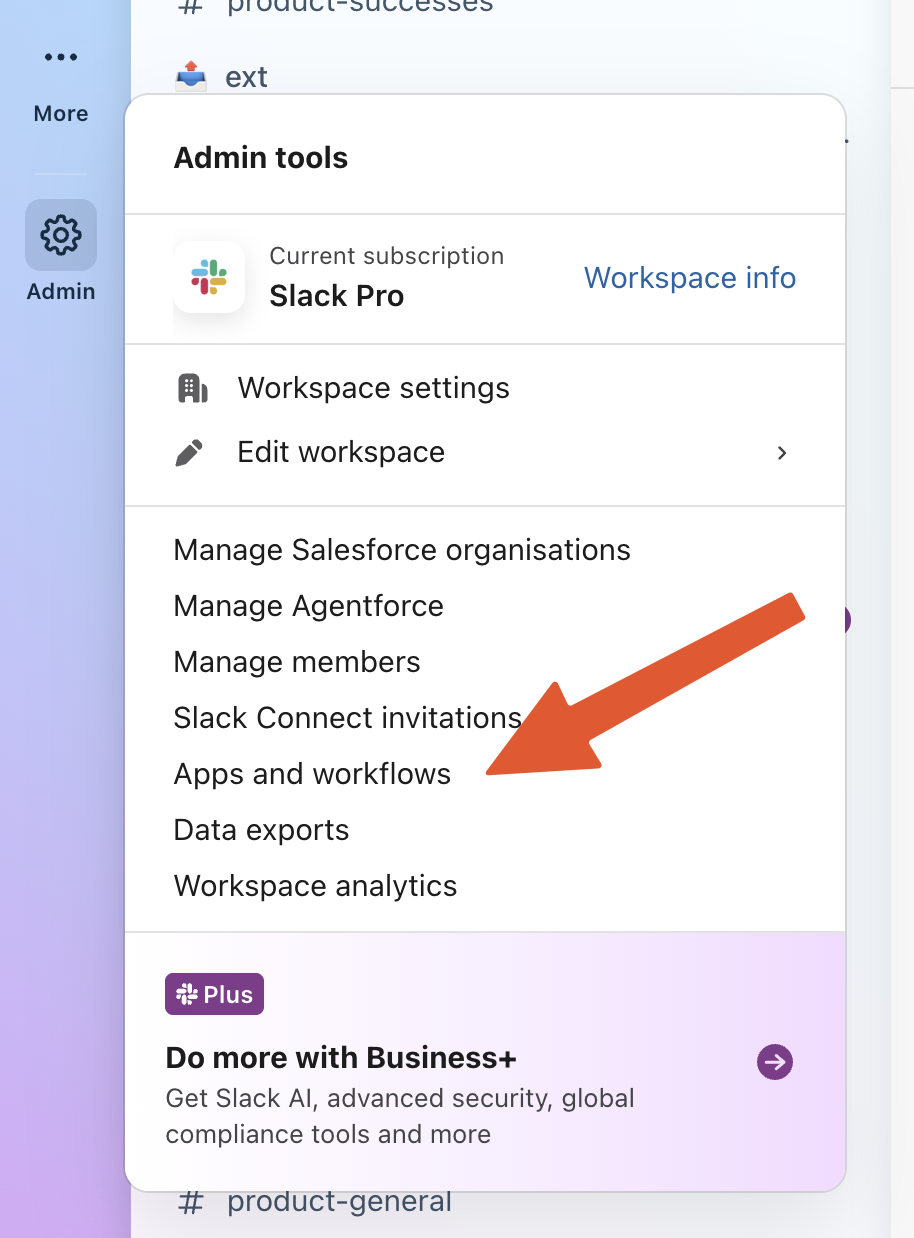
- In Slack’s desktop app, click the admin settings icon -> select Apps and workflows
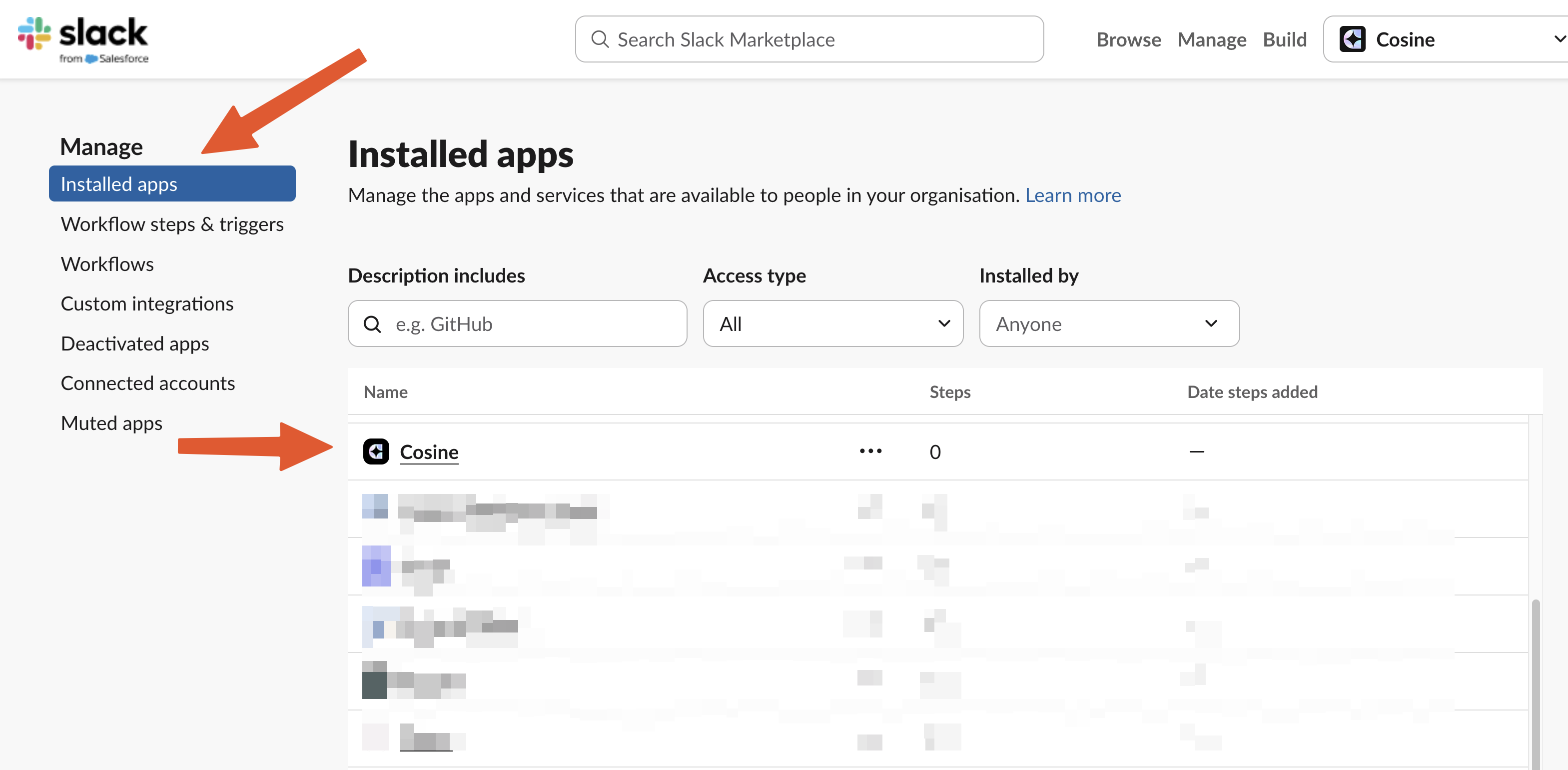
- Next, under Installed apps, select the Cosine app
- Lastly, select App settings, and under Show Cosine on Slack’s top bar click the
Editbutton. This will open up a modal allowing you to enable
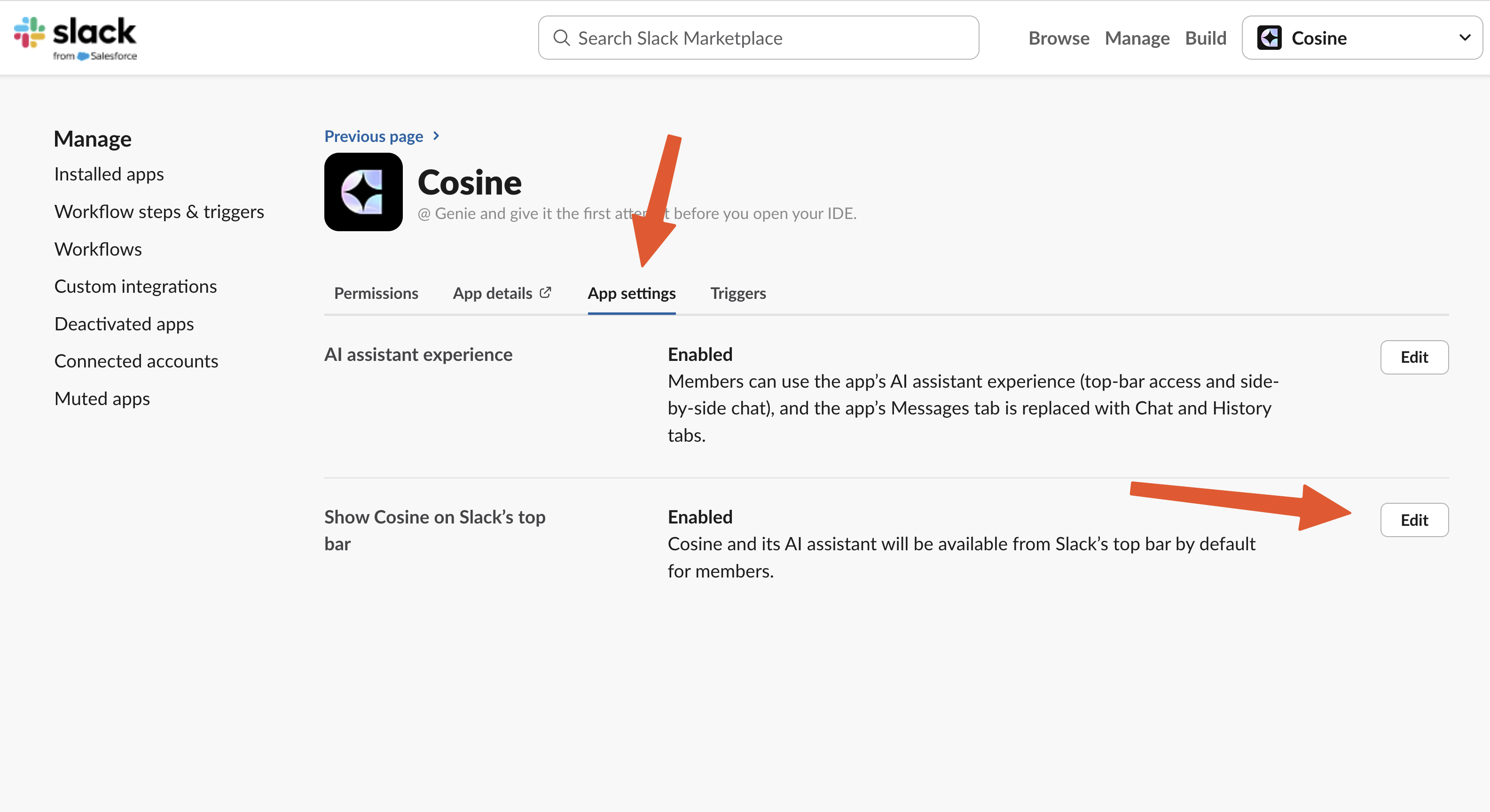
NOTE: After changing either setting, you’ll need to close and relaunch Slack to see the new icon and functionality.
How it works:
Section titled “How it works:”When you message Cosine, a short task-setup form appears, prompting you to:
- Select the project to start your task in.
- If your team has only one project, Cosine automatically assigns tasks to it, ensuring a frictionless experience.
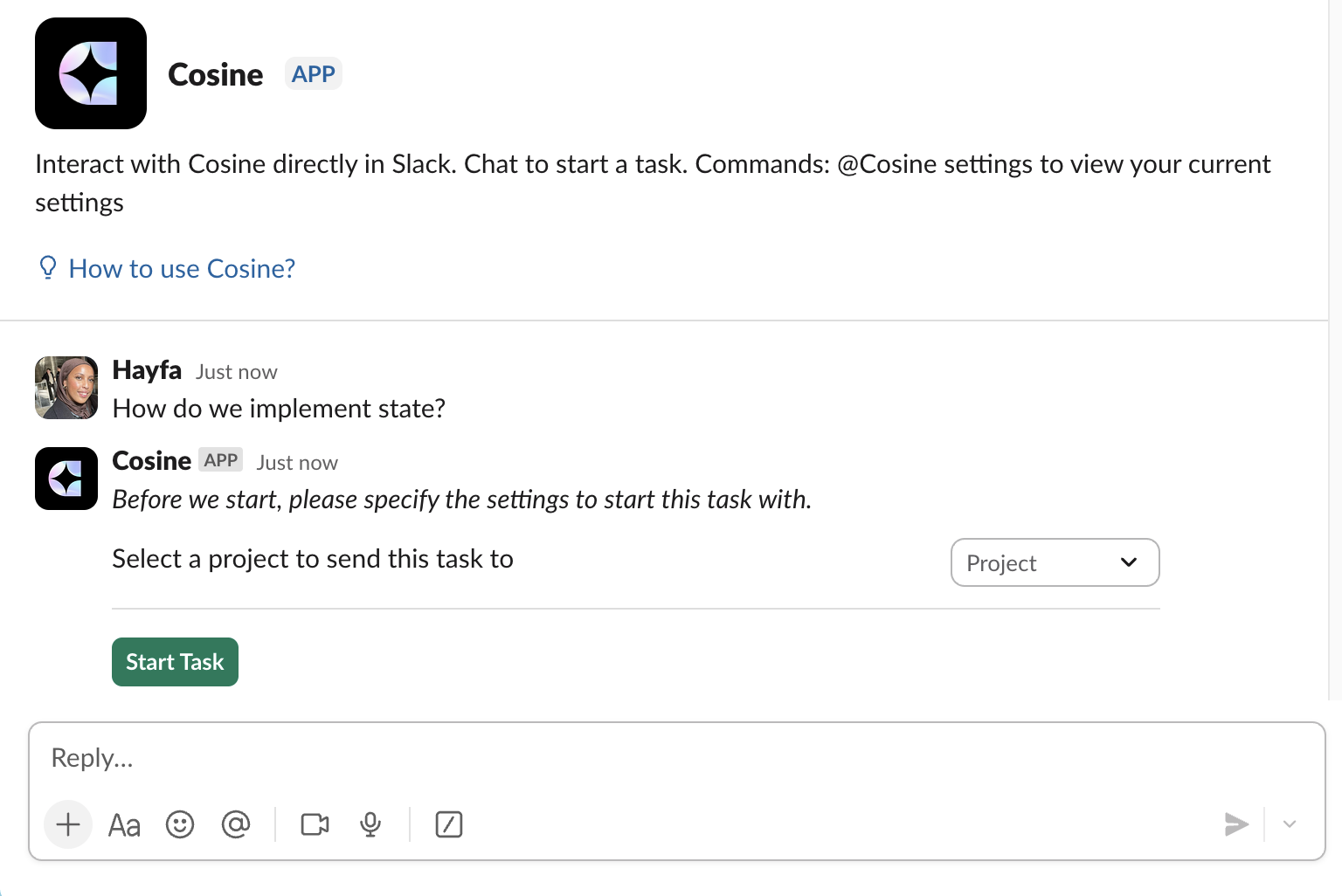
Once configured, your conversation with Cosine continues directly within Slack, allowing back-and-forth interaction and immediate feedback. View all interactions in the History tab.
Commands and task settings:
Section titled “Commands and task settings:”Task settings apply per task and can be adjusted anytime within the conversation:
| Command | Description |
|---|---|
@Cosine settings | View the current settings for your active task and conversation |
Permissions
Section titled “Permissions”| Permission(s) | Description | Rationale |
|---|---|---|
commands, assistant:write, app_mentions:read | Execute slash commands, act as an assistant, and see app-mention messages | Enables Cosine to respond to / commands, act in Slack, and detect when it’s mentioned. |
channels:history , groups:history , im:history ,mpim:history | View messages and content in public channels, private channels, DMs and group DMs | Lets Cosine fetch prior context when a task is launched inside a thread or DM. |
chat:write , chat:write:public, im:write ,mpim:write | Send messages in channels (public & private) and start DMs | Allows Cosine to communicate with users anywhere in Slack. |
channels:read , groups:read , im:read , mpim:read | See basic info (names, IDs, members) for public channels, private channels and DMs | Helps Cosine discover which conversations it can join or send notifications to. |
links:read, links:write , files:read | Read links to create previews, post rich links, and access files shared in channels | Enables Cosine to handle attachments and unfurl task links sent in Slack. |
users:read , team:read | View basic information about workspace users and the workspace itself | Allows Cosine to map Slack users to Cosine users and adapt behaviour per workspace. |
metadata.message.read | Read message metadata (timestamps, reactions, thread info) | Provides Cosine with additional context to start tasks with. |