
Jira
Overview
Section titled “Overview”Integrating Cosine with Jira streamlines your workflow by creating Cosine tasks directly from your Jira issues. Assign the issue to yourself or a teammate, send the issue to Cosine, and keep using Jira in your usual way. Cosine runs quietly in the background, ensuring your teams stay updated and your tasks flow seamlessly.
Configure
Section titled “Configure”To integrate Jira:
- Navigate to the Integrations page in your Cosine team.
- Select Jira from available integrations
- Select Enable to initiate the connection
- Authorize Workspace: If you are part of multiple Atlassian workspaces, select the appropriate one.
Note: You must be an admin in the selected workspace site
How it works
Section titled “How it works”With the Jira integration enabled, you can easily initiate Cosine tasks:
Using Custom Cosine Labels
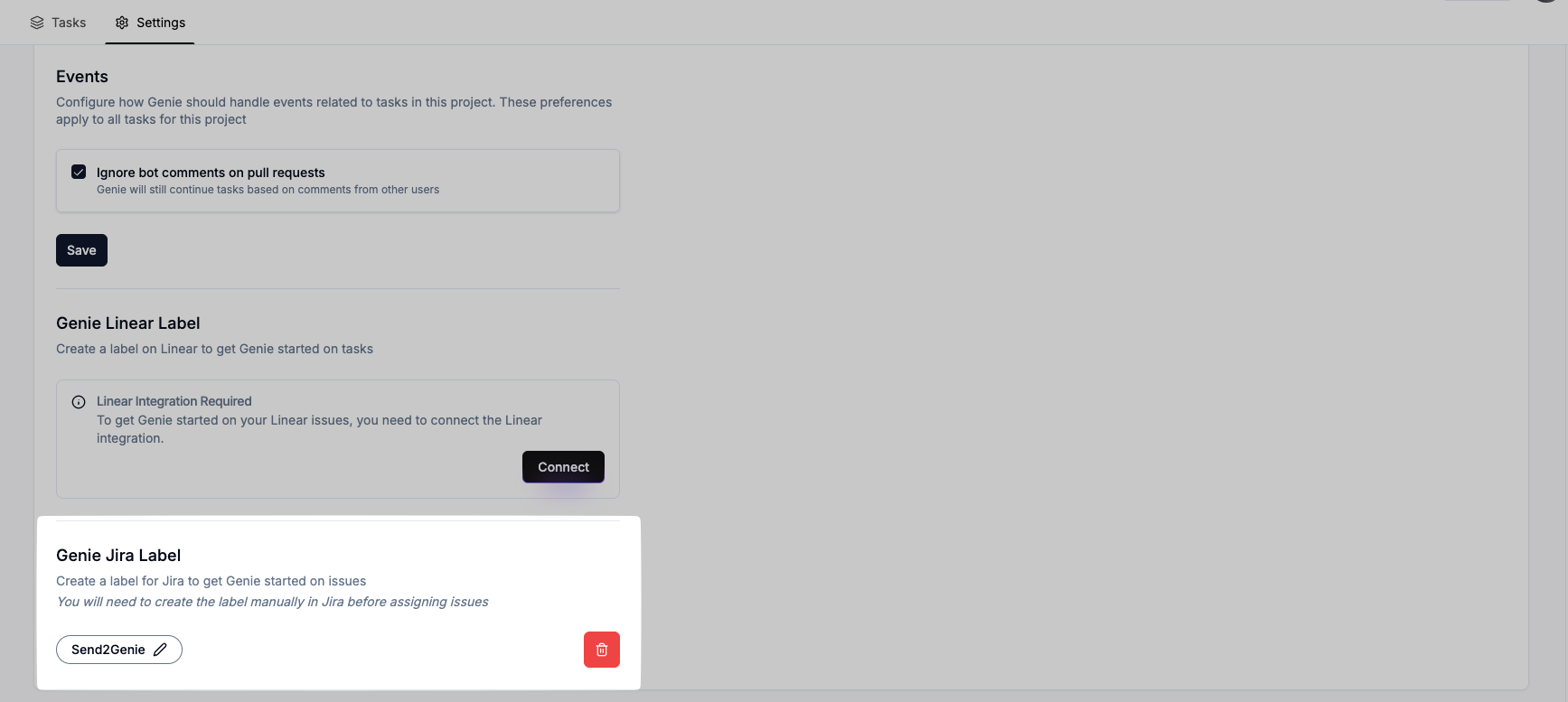
Section titled “Using Custom Cosine Labels”- Set up a unique custom label in your project (e.g.
SendToCosine).
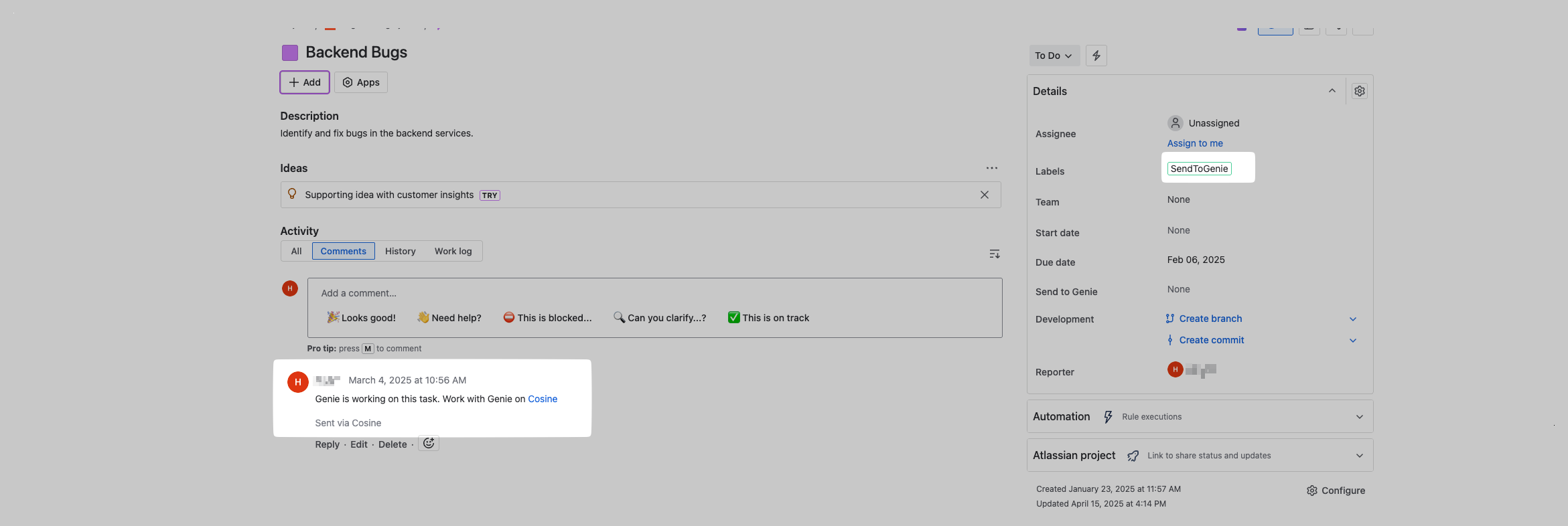
- Adding this label to any Jira issue automatically creates a Cosine task using the issue’s context. Cosine will also post a comment in the Jira issue with a link to the newly created task, so everyone can track progress or jump into Cosine as needed.
Selecting Jira Issues in Cosine
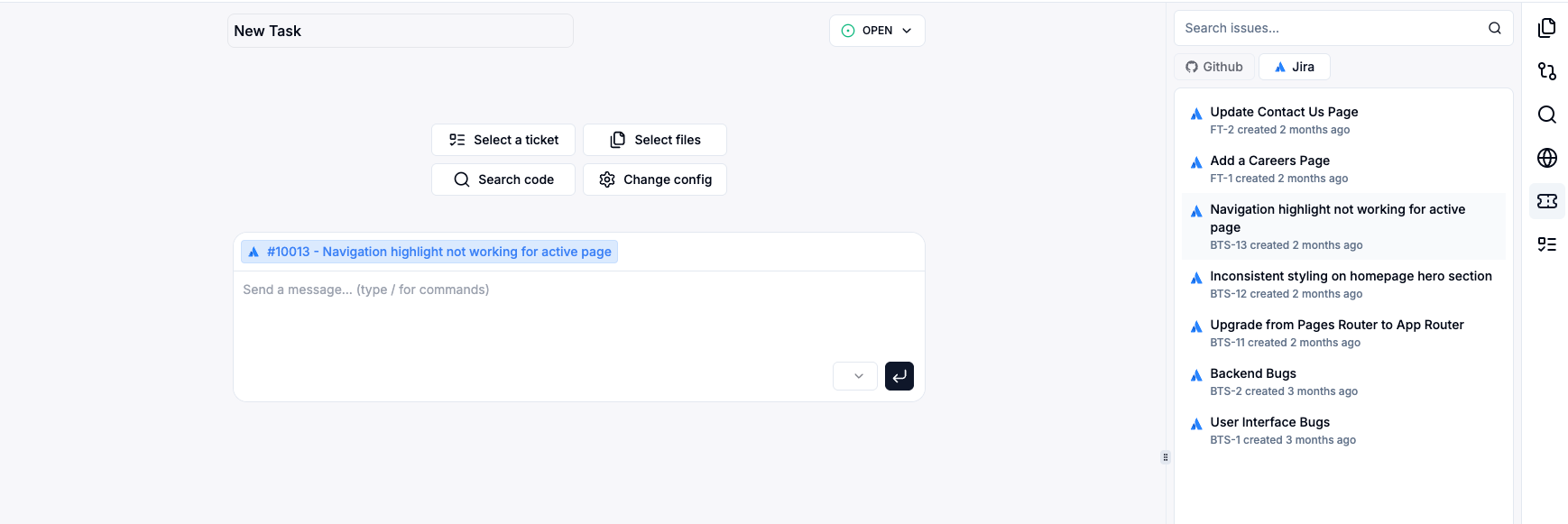
Section titled “Selecting Jira Issues in Cosine”When creating a new task in Cosine, you can:
- View your Jira issues
- Select one to serve as context for the new task.
- Optionally add a prompt or additional details before coming task creation
Configuring Custom Cosine Labels
Section titled “Configuring Custom Cosine Labels”Visit Project Settings within Cosine to create, update or delete custom Cosine Jira Labels. Ensure you choose a label name unique to your Atlassian setup and installation
Each connected Jira site can have up to 5 labels associated with it.
If you need to update or change your existing labels across different projects within a team, you can easily do so at any time by removing one or more existing labels and adding new ones.