
Using Cosine
Providing Instructions
Section titled “Providing Instructions”Cosine works best with clear, specific instructions. To get the most out of Cosine:
- Keep your prompts clear and detailed.
- Mention specific files or tasks when possible.
- Break complex requests into simpler steps.
For detailed tips, check out Prompting Cosine.
Example Prompt:
Section titled “Example Prompt:”A simple yet clear prompt might look like this:
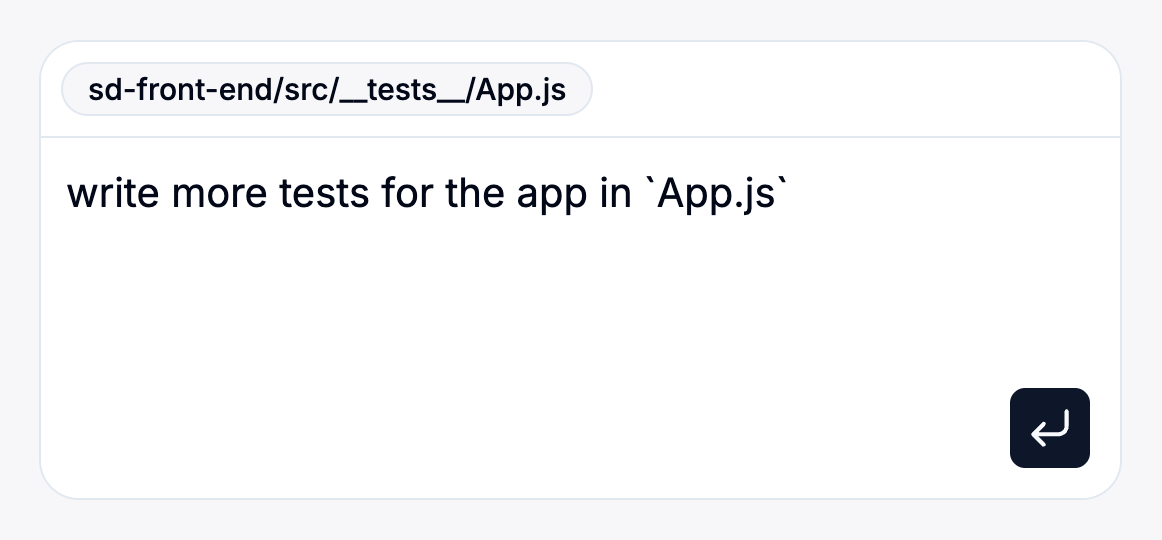
You can also attach relevant files to your prompt to give Cosine additional context.
Reviewing Cosine’s Work
Section titled “Reviewing Cosine’s Work”Once Cosine receives your instructions, it’ll:
- Generate a Pull Request (PR) with detailed explanations of its changes.
- Allow you to review and provide feedback directly.
Reviewing and Managing Tasks
Section titled “Reviewing and Managing Tasks”- Click “View PR” to open Cosine’s PR directly in GitHub if you prefer reviewing there.
- Alternatively, you don’t need to leave Cosine - just click on the task status dropdown (initially showing Open) and select “Mark as Completed”.
- If you decide the changes aren’t needed, choose “Close” to close both the task and PR or “Delete” to remove the task entirely.
Continuing the Conversation
Section titled “Continuing the Conversation”- If Cosine’s initial changes need adjustments, keep the chat going by providing additional instructions. Cosine will continue refining its changes.
- For small adjustments, feel free to directly edit Cosine’s proposed changes yourself using Cosine’s built-in editor.
- After making your edits, you can merge them directly within Cosine.
Merging Changes
Section titled “Merging Changes”When you’re happy with the results:
- Merge the PR in GitHub or your preferred way of doing so.
- Mark the task as “Completed” within Cosine.
- Your project is now updated, and you’re ready to tackle the next task!
Remember that marking a task as “Completed” in Cosine does not automatically merge the PR; you’ll need to merge it in GitHub as usual unless your workflow is configured otherwise.
With Cosine, the process is seamless, collaborative, and flexible - allowing you to manage development tasks efficiently.